
Surveys help you collect feedback from your team and identify changes in employee sentiment over time. Responses help improve the strength of Predictive Insights by providing additional signals about employee sentiment and engagement.
Accessing Surveys
You can access Surveys in two places:
- Studio → Get real team feedback and Surveys analysis card: create your first survey campaign
- Admin → Surveys: manage campaigns and runs, review results, and track response trends
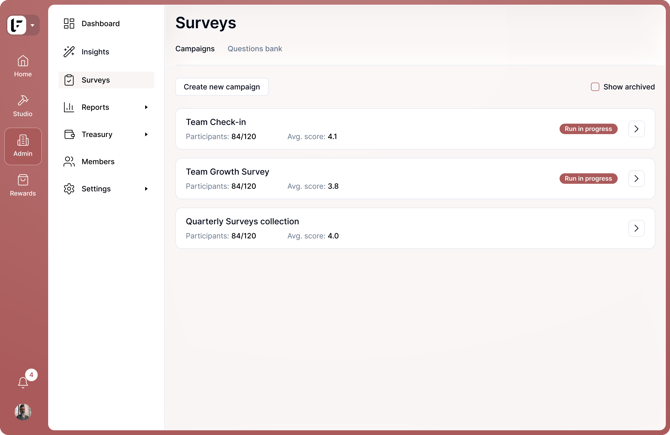
Creating a survey campaign
Open Admin → Surveys and click Create new campaign.
Creating a campaign includes four steps:
- Select questions
- Select participants
- Configure rewards
- Review and launch
Select questions
Choose questions from the Questions Bank.
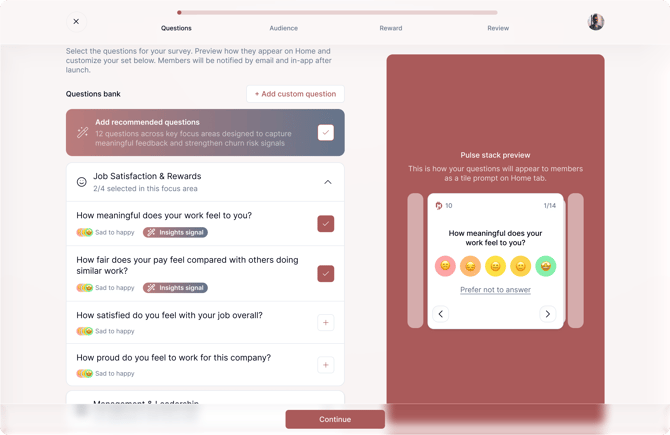
Questions are grouped into categories, including:
- Job Satisfaction & Rewards
- Management & Leadership
- Role Clarity & Team
- Safety & Development
- Workload & Work-Life Balance
- Other
The same categories are used throughout survey reporting and appear as Focus Areas in your results.
Questions marked as Recommended are based on industry-standard approaches to measuring employee sentiment and are a good starting point for most survey campaigns.
Create custom questions to collect feedback on unique items or topics not currently covered in the Questions Bank. To create a custom question, click Create custom question, enter your question, select a response scale, and save it. Available response scales include options such as Sad → Happy and Never → Always.
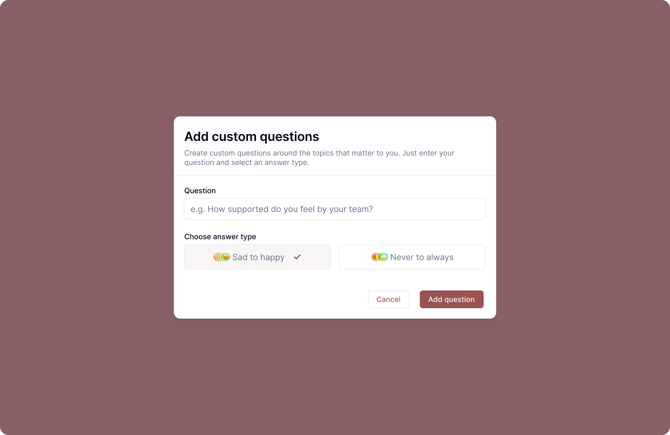
Custom questions are automatically added to the Others category and can be reused in future survey campaigns.
Select participants
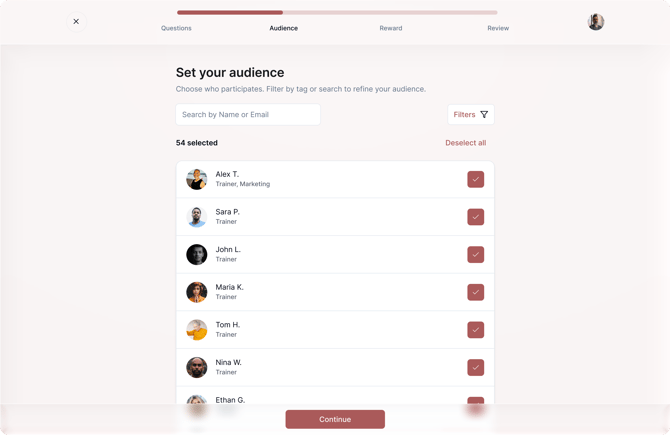
Choose who should participate in the survey.
You can filter and select:
- Individual members
- Members with specific roles
- Members with specific tags
- Everyone in your organization
Configure rewards
Rewards are required for all survey questions. During this step, you’ll set the number of points participants earn for each completed response.
Rewards are granted for submitted responses. Questions marked Prefer not to answer do not earn rewards.
The total reward is calculated automatically based on the selected questions and reward settings.
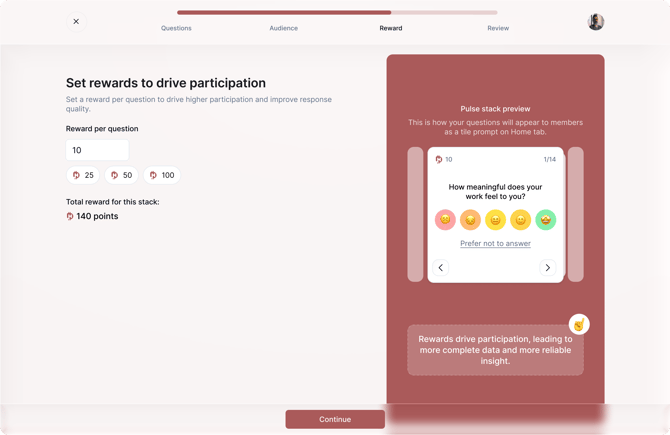
For more information about workspace funding, see Funding Your Workspace.
Review and launch
Review your campaign settings before launching.
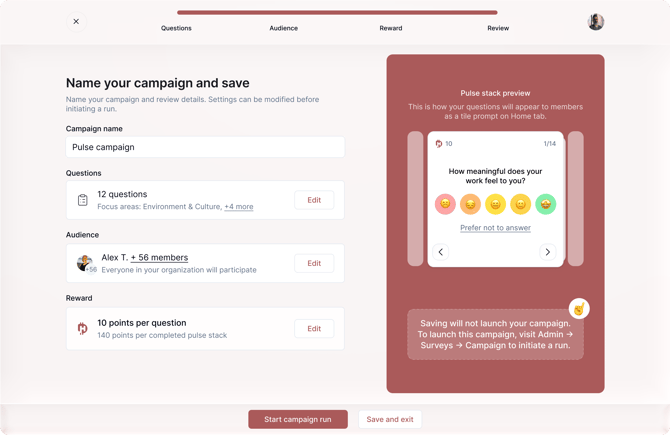
From here you can:
- Give the campaign a name
- Review and update your selected questions, participants, and rewards
- Enable or disable email notifications
- Save the campaign and launch a run later, or start the first run immediately
Once saved, the campaign will appear in the Campaigns tab on the Surveys page.
Survey runs
A run is an individual survey launch within a campaign.
You can create multiple runs within the same campaign and compare results over time. This makes it easier to track changes in team sentiment while keeping all related survey data in one place. Each run is configured independently, allowing you to update participants, questions, rewards, and notification settings before launch. A campaign can have multiple completed runs, but only one run can be in progress at a time.
To start a run:
-
Open a campaign
-
Click Start new run
-
Review and update the settings
-
Click Start campaign run
[Screenshot – New run page]
Participants receive a notification in MustardHub when a run starts. If email notifications are enabled, they will also receive an email invitation.
Viewing results
Open any campaign to review results across runs.
The campaign overview includes:
- Average score
- Focus area scores
- Response distribution
- Trends across runs
Focus area scores are calculated using the survey categories selected for your campaign.
[Screenshot – Campaign page]
You can also open an individual run to review:
- The list of questions included in the run
- Question-level results, including:
- Average score
- Industry benchmark comparisons, where available
- Participation rate
- Response distribution
- Other run details, including:
- Participants
- Reward settings
- Start date
- Run status
[Screenshot – Run page]
Use campaign-level reporting to track trends over time, and run-level reporting to understand the results of a specific survey launch.
Survey results contribute to Predictive Insights and help identify areas that may require attention. Learn more in Predictive Insights.
Archiving campaigns and runs
Campaigns and runs can be archived once they are no longer needed.
Archived items remain available for historical review but are excluded from campaign reporting by default.
On the campaign page, use the Show archived checkbox to control whether archived runs are included in campaign statistics:
- When Show archived is enabled, campaign statistics include both active and archived runs.
- When Show archived is disabled, campaign statistics only reflect non-archived runs.
Recommended articles
- Surveys (User)
Learn how survey participation works and earn rewards. - Predictive Insights
Unearth advanced analysis beyond Culture Studio. - Funding Your Workspace
Get more details on funding and financial permissions.